
What is PowerPoint?
PowerPoint is a presentation software (a program used to assemble and present slides of visual information on a computer) using a familiar windowed interface that allows users to create and order slides to be presented. PowerPoint has options to add drawings, various types of visual or audio media, text, animations, and comes with online file storage and compatibility with Microsoft’s Office Suite applications.
Where did PowerPoint come from and why is it so widely used?
PowerPoint was originally dubbed “Presenter” before being acquired by Microsoft and rebranded as PowerPoint in 1990; Richard Gaskins, a computer scientist, developed Presenter to remove tedium from the preparation of visual slide presentations. Before PowerPoint existed, presentations were done using spreadsheets, chalkboards, and transparencies, all of which were either time consuming to make, unintuitive at communicating information, or both. Due to PowerPoint being the first presentation software made accessible, it has become a common name in education and business, dominating the marketplace. A 2012 study which surveyed over a thousand presenters who were either students or employees from varying fields found that 83% of the participants named PowerPoint as the software they used for presentations with no competing software garnering higher than 4% (Thielsch, M. T. & Perabo, I. 2012). Since 2012 new competitors like “Prezi” have hit the market offering alternatives. PowerPoint isn’t just a presentation software, it’s a virtual studio and the original magic rectangle on a computer screen that brought humanity out of the age of projectors and chalkboards (Sen, 2018).
How do I use PowerPoint and which operating systems run it?
PowerPoint is available on Windows, Apple, IOS, and Android so you will require a machine running on one of these operating systems in order to use it. The program’s interface is a window with a feature bar (called a tool or command bar) across the top with options to create new slides or add features to existing ones. New slides can be added by right clicking and selecting from a drop down menu (see Figure 1 below). Media of many kinds can be inserted and the program comes with a healthy supply of free stock images to use as well. A design suggestion feature (under designs>design ideas) will preview potential slide builds which you can choose to template from and will assist in building a professional presentation quickly.
Figure 1: Creating a new slide via dropdown menu in the PowerPoint interface.

Is PowerPoint hard to use? Where can I learn more?
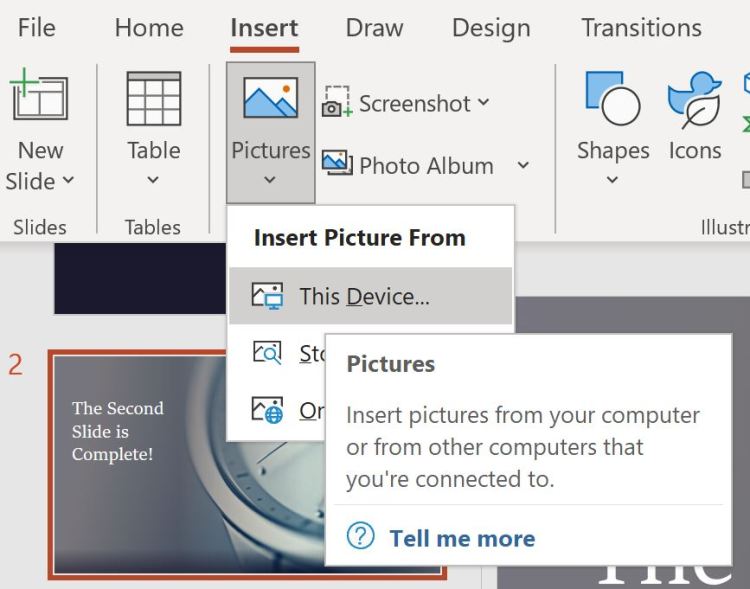
For users that are familiar with windows, using PowerPoint should be intuitive, but for other users it might not be. Fortunately, if you stop the mouse cursor over a toolbar feature PowerPoint will display a detailed description of it and an option to click to learn more, as visible in Figure 2 (below). Control Z works like other Windows programs, undoing the last change that was made and right clicking will produce a dropdown menu with more options. The depth of features may feel intimidating but for a new user the basic elements are accessible and presentations can be made without having to do much leg work. If you can right click, drag, drop, and navigate a toolbar, then you can make a presentation in PowerPoint. If you would like to learn more about how to use PowerPoint, a decent guide is available from 24slides.com. From my personal experience, going into PowerPoint and testing out the features has been fruitful and fun.
Figure 2: Inserting a picture using the toolbar in the PowerPoint Interface.
Is PowerPoint good for creating video presentations?
Yes and no; PowerPoint lacks the deep features that a dedicated video editor has but can do light recording and transition work. Overall PowerPoint is a platform for integrating media in an orderly way. It can be used to place a video into a presentation but would be cumbersome if used purely as a video editor; You could use it as one but you’d likely be better off using an actual video editor to do the patchwork, then inserting the polished video into a PowerPoint slide for presentation. PowerPoint is not a content generator (though it can emulate one), it is an option laden vehicle for your content to reach the audience. You must drive and stock the vehicle but it will get your cargo from A to B.
How do you present using Powerpoint?
If you are presenting from your PC, notebook, or tablet you can use PowerPoint to run the slideshow on screen or a designated monitor. Another option for presentation is to share your screen in Zoom while in slideshow mode (Zoom 2021.)
You can download a sample presentation I made while preparing this FAQ this link:
References
Carla Albinagorta (2020). PowerPoint 101: The ultimate tutorial for beginners. 24 Slides.
24slides.com/presentbetter/powerpoint-101-the-ultimate-tutorial-for-beginners/
Sen, Priyanka. (2018). Disruption, innovation, and endurance: A brief history of PowerPoint.
Hult International Business School.
www.hult.edu/blog/brief-history-of-powerpoint
Thielsch, M. T. & Perabo, I. (2012). Use and evaluation of presentation software. Technical
Communication, 59(2), 112-123.
Zoom. (2021). Screen sharing a PowerPoint presentation.
support.zoom.us/hc/en-us/articles/203395347-Screen-Sharing-a-PowerPoint-
 Vince Designs